


Smart Remote - Easy TV Control
4.21.98K Reviews
App Specs
- Version
- 1.5.0
- Updated On
- License
- Free
- Downloads
- 5,000,000+
- Developer
- Figuredin
- Categories
- Tools
- Platform
- Android
Screenshots
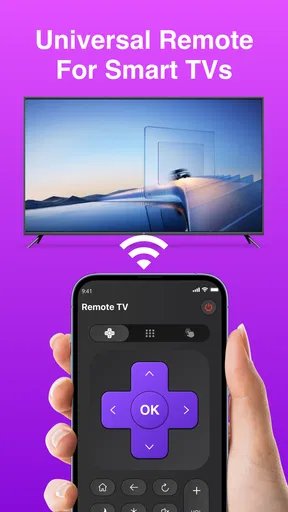
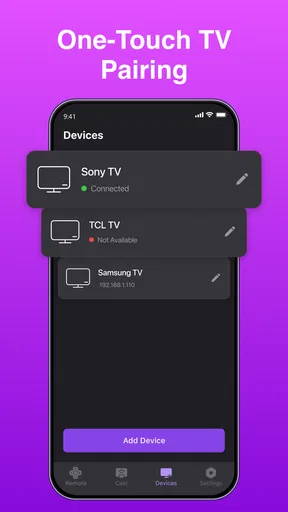
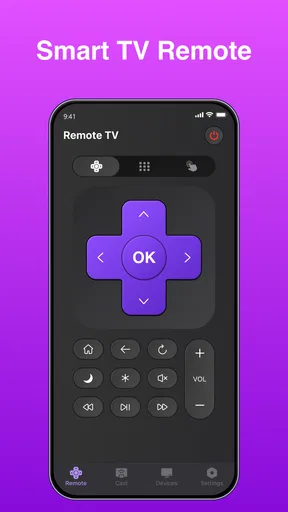
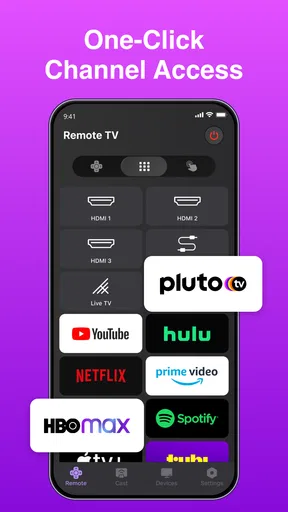
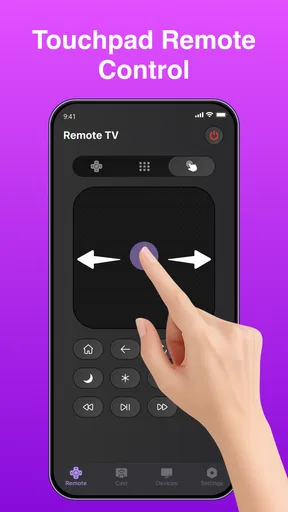
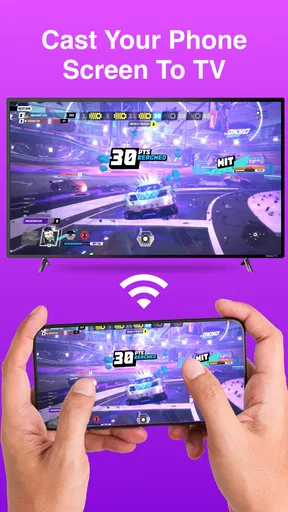
 Analysis by AppCompare
I’d treat Smart Remote - Easy TV Control as a practical backup to the remote you already use, rather than a guaranteed replacement for every TV control in the house. Its appeal is easy to understand: when the physical remote has slipped between the cushions or someone else has it, your phone may be close at hand. I find that kind of convenience most useful when it solves a small, repeated annoyance without asking me to change how I watch television.
Before installing it, it helps to set a realistic expectation. A phone remote can be handy for basic viewing, but the connection depends on the television and the way your home network is set up. The useful first question is not whether it promises to control every screen, but whether your particular TV can be found and operated. Keeping the original remote nearby during setup makes the first test less stressful and gives you an easy fallback if pairing takes a little patience.
Who will get the most from a phone remote
I can see this being a good fit for someone who regularly misplaces the remote, shares a TV with family, or wants a quick way to adjust the volume without searching the room. It can also help when a household has a spare phone available for guests or children to use for simple controls. Figuredin’s app is a free tool in the Tools category, and its broad appeal is reflected in an average rating of 4.3 from around 63,000 ratings, with more than five million installs.
It is less compelling if your current remote is always within reach and already makes every common task easy. I would also keep a physical remote as the main option if you rely on buttons or functions that are awkward to reach on a phone, or if you expect the app to work with a TV that is not compatible with its connection method. A phone remote is most valuable as a convenient alternative, not as a reason to discard a working controller before testing the setup.
Getting Started with Smart Remote
First things first, setting up Smart Remote - Easy TV Control is a breeze. All you need is a smartphone and a compatible TV. The app is available for download on both Android and iOS, so no one gets left out. Once you’ve got it downloaded, it’s just a matter of connecting your phone to the same Wi-Fi network as your TV. Easy peasy, right?
The app supports a wide range of TV brands, and even if your model isn't listed, the chances are it’ll still work. The user interface is intuitive, making it super easy to navigate. You’ll find yourself swiping through channels and adjusting the volume like a pro in no time.
Making the first connection less frustrating
For a calmer first run, I would begin with the TV turned on, the phone connected to the home network you intend to use, and the original remote within reach. Then I’d open the app and follow its on-screen connection steps rather than guessing at controls. If the TV does not appear straight away, I’d check that both devices are on the same network and that the TV is awake before trying again. This simple order helps distinguish a setup issue from a control issue.
Worth Reading Before You Choose

EA SPORTS FC Mobile 26 Is a Bigger Football Game, but It Takes Time

Flipboard Shows What News Apps Must Do Beyond the Feed

Switching to Android Auto Means Rethinking Your Driving Routine

Google Calendar Makes a Crowded Week Easier to Manage

Ludo King Makes the Most of the Minutes Between Plans

Baby Panda World Brings Quick Play to Modern Phones, but Its Game Library Feels Busy
Shared homes can make this check surprisingly important. A phone may be connected to a guest network while the TV is on the household network, even though both devices have internet access. That can make the connection seem broken when the actual issue is that the devices cannot see each other locally. I would check the network name on both devices, especially after switching Wi-Fi or setting up a new router.
Features That Stand Out
What really sets Smart Remote apart is its rich feature set. Not only does it let you control basic TV functions, but it also offers some pretty cool extras. You can use the app to access your streaming services directly. Imagine switching from cable to Netflix without ever touching your physical remote. It's like magic!
Another highlight is the voice command feature. Just speak into your phone and let the app do the rest. Whether you’re searching for a specific movie or changing channels, it’s all hands-free. It’s especially handy during those popcorn-munching moments when you don’t want to get your hands dirty.
What to test before relying on the extras
I would test one simple command at a time before assuming every part of the experience works equally well. Start with a basic control such as volume or navigation, then try the action you use most often, such as opening a streaming service. That gives you a useful sense of whether the app is a good fit for your routine, rather than leaving you to discover a limitation halfway through a film.
Voice input is best treated as a convenience, not a necessity. In a quiet room, speaking a search may save a few taps; in a busy living room, typing or using the TV’s own remote can be more dependable. It is also worth remembering that a voice command and a successful TV action are separate steps: the phone has to interpret what you said, and the TV still has to respond through the connection. If either step is unreliable in your room, ordinary controls may be quicker.
Everyday Use and Convenience
Once you start using Smart Remote, you’ll wonder how you ever lived without it. One of the biggest conveniences is the ability to customize controls. You can set up your favorite channels or apps for quick access. It’s like having a personalized entertainment hub right at your fingertips.
There’s also a handy feature that lets you create a universal remote for all your smart devices. If you have multiple TVs or smart gadgets around the house, this app can become your one-stop solution. Switching between devices is seamless, and the app’s responsiveness is top-notch.
A realistic evening routine
Picture coming home, making dinner, and settling down to watch something while the remote is in another room. I’d use the phone for the immediate task—turning the volume down while someone is on a call, for example—then keep it nearby for the next basic adjustment. That is a more realistic benefit than expecting a phone to transform the whole entertainment setup: it cuts out a small interruption at exactly the moment you would otherwise get up or hunt around.
For a household with more than one TV, I’d be deliberate about selecting the right screen before sending a command. A universal-style interface is convenient only when it is clear which device is active. If someone else is watching in another room, a quick glance at the selected TV can prevent the familiar annoyance of changing the wrong screen. I’d also agree on whether the app is a shared household backup or a personal controller, so two people are not trying to operate the same TV at once.
Compatibility and Integration
Smart homes are all the rage, and Smart Remote - Easy TV Control fits right into that ecosystem. It integrates well with other smart home devices, offering a unified experience. Plus, if you’re using a smart assistant like Alexa or Google Assistant, you can sync it to maximize your control options.
One thing to keep in mind is that your phone needs to have an IR blaster for it to work with older TV models. Most modern smartphones have this feature, but it’s worth checking before jumping in.
Choosing between Wi-Fi, infrared, and the original remote
Phone remotes generally depend on either a network connection or infrared hardware, and those approaches suit different setups. The network route makes sense when a compatible TV and phone can communicate over the same home Wi-Fi. Infrared can be relevant for older equipment, but it requires an IR blaster in the phone; it is not a feature every handset has. If neither route suits your devices, the TV’s physical remote remains the straightforward choice.
This is why I would not buy a new phone or change a home network just to make a remote app work. Check the handset and TV you already own first, and use the simplest option that works consistently. If your TV manufacturer’s own remote app offers a better match for a specific model, that may be the smarter pick; if you only need occasional volume and navigation, a general remote can be more convenient to keep ready.
Small habits that make it more useful
Once it works, I’d keep the app somewhere easy to reach on the phone rather than burying it in a folder. I’d also try the most-used controls during a quiet moment, not when everyone is waiting for a show to start. A quick test of navigation, volume, and the route to a favorite service can reveal which actions feel natural on the screen and which are still easier with physical buttons.
For anyone who watches in a room with several devices, it helps to make a habit of checking the selected TV before tapping. And if the phone’s battery is low, the app is a poor substitute for a remote that is ready without charging. Those are small trade-offs, but they clarify where a phone controller fits: it is convenient when the phone is nearby and charged, while a physical remote is often better for long viewing sessions or quick, repeated button presses.
Why You'll Love It
In a world where convenience is king, Smart Remote is a game-changer. It adds a layer of simplicity to your daily TV-watching routine, saving you from the frustration of lost remotes and endless button pressing. Plus, the app is regularly updated, ensuring you always have access to the latest features and improvements.
Not to mention, it’s a fantastic conversation starter. Imagine showing off your phone’s remote capabilities to friends and family. They’ll be impressed, and you’ll be the tech-savvy hero of the group.
What I would check before making it the household default
My recommendation is to judge it by the handful of actions you actually repeat, rather than by how many controls appear in an interface. Can you connect to the right TV, change volume comfortably, and reach the viewing option you use most? If those basics are smooth, the app is earning its place. If one essential task is clumsy, it may still serve as a backup without becoming your everyday controller.
The app is free, rated for Everyone, and its current version is 1.4.7. It was released on November 7, 2024, and Figuredin is the developer. Those details make it easy to identify the app, but I would still base the decision on compatibility and how it behaves with your own TV. On Android, the minimum operating system is version 11, so it is sensible to check that your device meets that requirement before planning your setup.
One practical question is whether the app can replace every remote in a mixed setup. I would not assume that without testing each TV or device separately: a successful connection to one screen does not guarantee the same experience elsewhere. Another is whether it is suitable for a child or an older relative. Its Everyone content rating is reassuring in that respect, but the more important test is whether the on-screen controls are comfortable and clear for that person to use.
It has received around 1,100 written reviews alongside its much larger pool of ratings. I’d read recent user feedback if a particular TV model or phone is central to your decision, since compatibility is where individual setups can differ most. That is more useful than expecting a single rating to predict how well it will connect in your home.
In conclusion, if you’re looking to enhance your home entertainment setup, Smart Remote - Easy TV Control is a solid choice. It’s reliable, user-friendly, and packed with features that make TV watching not just easier, but more enjoyable. So go ahead, give it a try, and make your lounging time even more relaxing. You’ll thank me later!
Pros
- Intuitive interface simplifies usage.
- Compatible with multiple TV brands.
- Quick setup for immediate use.
- Customizable remote layout options.
- Voice control feature enhances accessibility.
Cons
- Ads can be intrusive during use.
- Limited functionality on older devices.
- Premium features require a subscription.
- Occasional connectivity issues reported.
- Lacks support for some smart TV models.
FAQs for Smart Remote - Easy TV Control
What features does Smart Remote - Easy TV Control offer?
Smart Remote - Easy TV Control allows users to seamlessly control their TV using a smartphone. It offers features like channel navigation, volume adjustment, input switching, and even voice commands. The app supports multiple TV brands and models, making it a versatile choice for users looking to consolidate their remote control needs.
Is Smart Remote - Easy TV Control compatible with all TV brands?
While Smart Remote - Easy TV Control supports a wide range of TV brands, it's essential to check compatibility with your specific model. Most major brands like Samsung, LG, Sony, and Panasonic are supported, but some older or lesser-known models might not be. Ensure your TV is compatible by checking the app's compatibility list.
Does Smart Remote - Easy TV Control require an internet connection to work?
Smart Remote - Easy TV Control primarily uses your phone’s infrared (IR) blaster to communicate with the TV, which doesn’t require an internet connection. However, some features, like voice control or app updates, may need an internet connection. Ensure your device has IR capabilities for optimal use.
How easy is it to set up Smart Remote - Easy TV Control?
Setting up Smart Remote - Easy TV Control is straightforward. After downloading the app, you simply select your TV brand and model, then follow the on-screen instructions to pair your device. The intuitive setup process is designed to get you controlling your TV in minutes, even if you’re not tech-savvy.
Are there any in-app purchases or ads in Smart Remote - Easy TV Control?
While Smart Remote - Easy TV Control is free to download, it may include ads and offer in-app purchases. These purchases often provide additional features or remove ads for a smoother experience. Check the app's store page for details about any premium offerings before downloading.


